
Your website just sent you an enquiry. How long before you see it?
If the answer is “when I next check my email”, you have already lost jobs to that delay. For a local business, a website enquiry is almost never a casual browse. It is someone with a problem right now: a leak, a breakdown, a quote they need this week. If your reply comes two days later, the job has already gone to whoever answered first.
WhatsApp fixes the delay, because the notification goes to the phone in your pocket. This tutorial connects an Elementor form to WhatsApp two ways: the simple redirect, which works today with no extra tools, and a proper message setup for businesses that outgrow it. By the end, every form submission can open a WhatsApp conversation with the customer’s details already typed in.
And the honest version first: this is a ten-minute job, not a project. If you can edit a form in Elementor, you can do this.
At a glance: Connect an Elementor form to WhatsApp with a wa.me redirect after submit, so the visitor lands in WhatsApp with their enquiry pre-filled. You need Elementor Pro (the Form widget is a Pro feature), your WhatsApp number in international format, and about five minutes. Keep the email action on as a backup, and only consider the WhatsApp Business API route if you get more than about fifty enquiries a month.
On this page:
- Why a slow reply loses the job
- What you need
- Method 1: Redirect to WhatsApp after submit
- The redirect link, line by line
- What this method does and does not do
- Method 2: The honest limits, and when to go further
- Method 1 vs the API route
- Details that make the difference
- Common mistakes when connecting a form to WhatsApp
- Frequently asked questions
- The short version
Why a slow reply loses the job
An enquiry form that lands in an inbox is fine, until it lands in an inbox nobody checks until Thursday. That is the normal state of a busy local business. The owner is on a job, the phone is in the van, and the inbox waits until the evening, or the weekend, or whenever the admin work finally gets done.
The customer does not wait with you. They sent the same enquiry to two or three businesses, because that is what everyone does when they need a tradesperson. The first reply wins most of the time, and the first reply is usually the one that arrived on a phone, not in an inbox.
Speed is the whole point of this tutorial. Nothing here changes your form, your services, or your prices. It changes where the enquiry lands: from an inbox you check when you remember, to the app you already check forty times a day.
There is a second benefit that matters just as much. A WhatsApp conversation is a conversation. The customer can send a photo of the leak, you can ask one quick question, and the quote moves forward in minutes instead of over three days of email. That back-and-forth is what turns an enquiry into a booked job.
One warning before we start: this setup does not replace your email. It adds a fast channel beside it. The email copy is your record, your backup, and your proof of what was asked. Keep it switched on, always. I will say this again in the steps, because it is the one detail people skip and later regret.
What you need
Three things, and you probably have two of them already.
An Elementor form on your site. The Form widget is part of Elementor Pro, so this tutorial assumes Pro. If you are on the free version, my comparison of Elementor Pro vs free shows exactly where forms fit in, and whether Pro is worth it for your site.
Your WhatsApp number in full international format. Country code included, no spaces, no plus sign. For example, 8801XXXXXXXXX for Bangladesh, or 614XXXXXXXX for Australia. Get this wrong and the link opens a chat with the wrong number, or with nobody at all, so double-check it before you paste it anywhere.
Five minutes. That is the whole setup for Method 1. No plugin to install, no account to create, no code to write from scratch. If the form already exists on your site, you are editing settings, not building anything new.
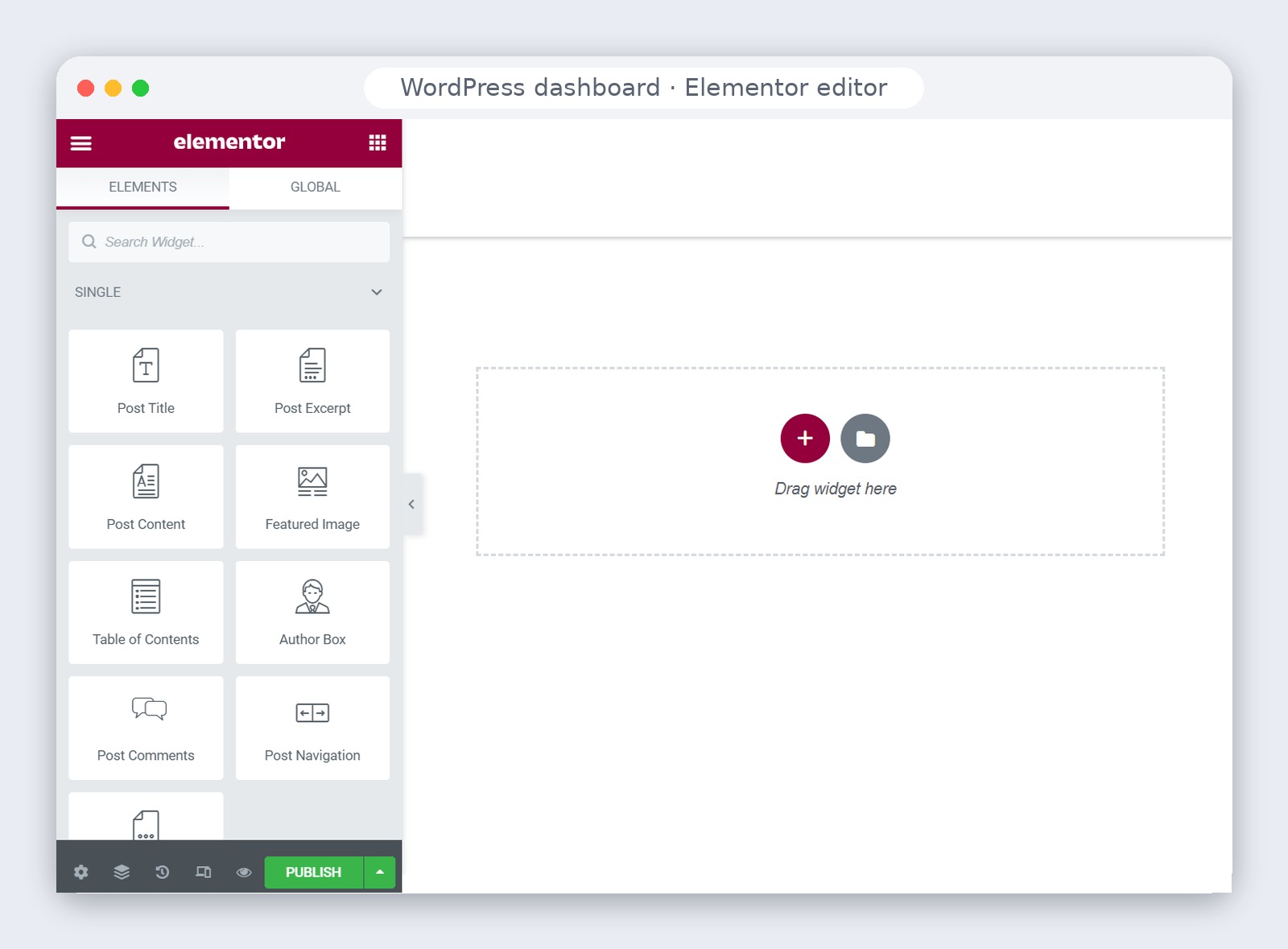
Method 1: Redirect to WhatsApp after submit (simple, reliable)
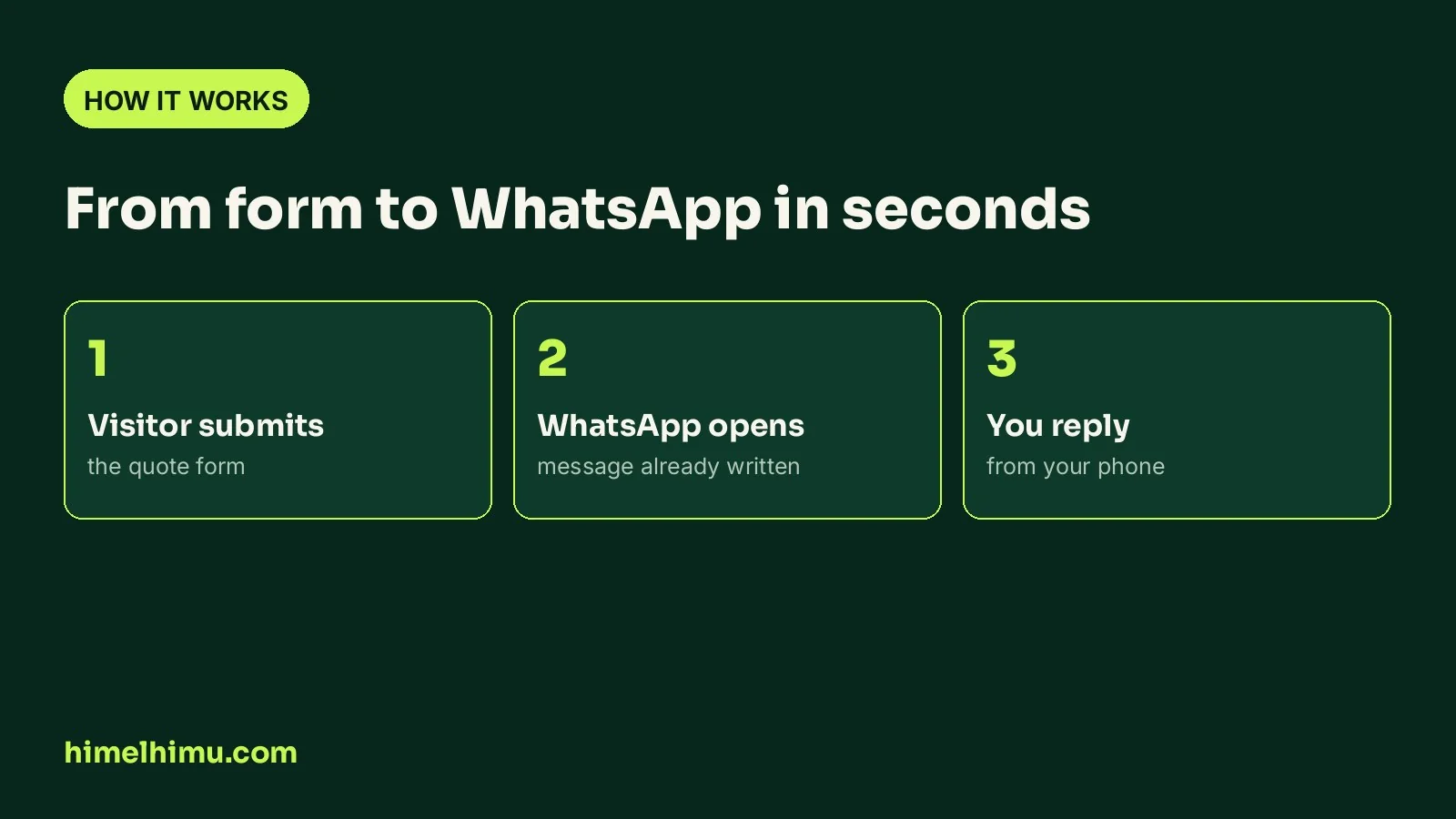
The idea is simple: when a visitor submits the form, instead of a plain thank-you message they are sent straight to WhatsApp, with a message pre-filled from their form answers. They tap send, and you get the enquiry as a WhatsApp chat you can reply to instantly.
Nothing is sent automatically, and nothing is installed. The form you already have just gains a new destination after submit. That is why this method is reliable: there are almost no moving parts to break.
Step 1: Give your form fields short IDs
Edit the form in Elementor. Click each field and open its Advanced settings, and set a short ID for each: name, phone, service, message. These IDs are how you pull the answers into the WhatsApp text in the next step.
Keep the IDs short and plain, exactly as written above. Long IDs with spaces or capital letters make the link harder to read and easier to mistype. If your form has extra fields you do not need in the WhatsApp message, leave them without an ID. Only the four that matter get one.
Pro tip: check the field order while you are here. The order the visitor sees is the order the answers will appear in your message, so put name first, then phone, then service, then the message box last. It reads like a real enquiry that way.
Step 2: Build the WhatsApp link
WhatsApp’s click-to-chat format is:
https://wa.me/YOURNUMBER?text=YOURMESSAGE
The message must be URL-encoded, which means spaces become %20 and line breaks become %0A. Elementor saves you the encoding work with field shortcodes. Inside the redirect URL you can insert field values like this, and Elementor fills them in at submit time:
https://wa.me/8801XXXXXXXXX?text=New%20website%20enquiry%0AName:%20[field id="name"]%0AService:%20[field id="service"]%0A[field id="message"]Replace 8801XXXXXXXXX with your own number in international format. The rest of the link you can copy as it is, then adjust the wording to match your business.
The redirect link, line by line
The link looks technical, but every piece does one simple job. Here is what you are pasting.
Part: https://wa.me/8801XXXXXXXXX
This is WhatsApp’s click-to-chat address, followed by your number. wa.me is WhatsApp’s own short domain, so the link opens a chat with that number on any phone. No plus sign, no spaces, country code first. If the number is wrong, the chat opens with the wrong person, so test it with your own phone before you publish.
Part: ?text=
Everything after this is the message that gets pre-filled in the chat box. The question mark separates the number from the message, and text= tells WhatsApp that what follows is message text, not part of the address.
Part: New%20website%20enquiry%0A
This is the first line of the message, URL-encoded. %20 is a space and %0A is a line break. So the visitor’s message starts with the line “New website enquiry”, then drops to a new line. That opening line is for you, not the customer: when it lands on your phone, you know instantly it came from the website form and not from a random contact.
Part: Name:%20[field id=”name”]
This is where Elementor does the clever part. [field id="name"] is a shortcode, and at submit time Elementor replaces it with whatever the visitor typed in the field with the ID name. The message the visitor sends therefore starts with their actual name, not the word “name”. The same trick works for every field you gave an ID in Step 1.
Part: %0AService:%20[field id=”service”]
Another line break, then the service the visitor picked, pulled from the field with the ID service. Knowing the service before you even reply is what lets you answer properly in the first message instead of asking “what do you need?” and waiting another day for the answer.
Part: %0A[field id=”message”]
One more line break, then the visitor’s own words from the message box. This is the part that makes the enquiry useful: the actual problem, in the customer’s own words, arriving on your phone the second they submit.
Notice what is not in the link: the phone field. The visitor’s phone number arrives with the WhatsApp chat itself, because WhatsApp shows you who sent the message. You do not need to ask for it twice.
Step 3: Set the form’s action
Select the whole Form widget, open “Actions After Submit”, and add Redirect. Keep Email as well, so you always have an inbox copy as backup. In the Redirect settings, paste your wa.me link into the Redirect To field.
Save, open the page on your phone, submit a test entry, and you should land in WhatsApp with the message ready to send. Test with your own number first, and read the message exactly as it will arrive. If a field is missing from the message, its ID does not match the shortcode in your link. That mismatch is the most common setup mistake, and the test catches it in thirty seconds.
Pro tip: test on a real phone, not just on your desktop. Desktop testing hides the whole point of this setup. Submit from your own phone and feel how many taps it takes from the form to the WhatsApp send button. If it feels like more than two taps, something is off: check the redirect is set on the form itself and not on a different form on the same page.
What this method does and does not do
It does not auto-send anything. The visitor still taps send in WhatsApp, which is actually a strength: the conversation is started by the customer, so replies feel personal, and you get their real WhatsApp number for the follow-up. Nobody likes a business that messages first out of nowhere, and this setup never does that.

The weakness is honest too: a visitor can close the tab instead of sending. That happens. Some people submit the form, see WhatsApp open, and decide they will call later instead. The email copy you kept in the actions covers that gap, because the form data still reached your inbox even if the WhatsApp message never arrived.
So the system is really two channels, not one. WhatsApp is the fast channel, email is the record. A visitor who sends the WhatsApp message gets a fast reply. A visitor who closes the tab still leaves an email you can follow up on. Neither channel alone is as good as both together, and that is why the email action is not optional in my builds.
Method 2: The honest limits, and when to go further
People often ask for the enquiry to arrive as a WhatsApp message without the visitor doing anything. No redirect, no tap to send, just a message appearing on your phone the moment the form is submitted.
That requires the WhatsApp Business API through a provider such as Twilio, WATI or Interakt, connected with a webhook tool. It is a real option for businesses with high enquiry volume, but it adds a monthly cost, template message approvals, and setup time that most local businesses do not need.
The API route is not a better version of Method 1. It is a different system for a different scale. With the API, messages come from your business number automatically, you can route them to staff, and you can send approved template messages to customers who opted in. That is powerful when you handle dozens of enquiries a day. It is also a monthly bill, a provider account, and message templates that WhatsApp has to approve before you can use them.
My honest rule: under about fifty enquiries a month, Method 1 plus the email backup is the better system. It costs nothing, it takes five minutes, and it breaks so rarely that you will forget it exists. Above that volume, the API route starts paying for itself, because at that scale the odd visitor who closes the tab instead of sending adds up to real lost work, and routing enquiries to the right staff member matters more than saving a monthly fee.
If you do go the API route later, nothing in Method 1 is wasted. The form, the field IDs, and the short message format all carry over. You are replacing the delivery mechanism, not rebuilding the form.
Method 1 vs the API route
| Method 1: Redirect | API route | |
|---|---|---|
| Cost | Free | Monthly provider fee |
| Setup time | About five minutes | Hours, plus template approvals |
| Visitor taps send? | Yes, the visitor sends it | No, it arrives automatically |
| Needs a provider? | No | Yes: Twilio, WATI, Interakt or similar |
| Best below | About 50 enquiries a month | Above 50 enquiries a month |
| Backup if visitor closes the tab | The email copy | Not needed: the message already arrived |
The table makes the decision simple. If you are under fifty enquiries a month, the redirect is not the cheap compromise. It is the right tool.
Details that make the difference
The setup to connect an Elementor form to WhatsApp takes five minutes. These five details decide whether it actually brings in work.
Keep the form short. Name, phone, service, one message box. Every extra field lowers the number of people who reach the WhatsApp step. A form that asks for address, budget, preferred date, and how they found you is a form that filters out the customers you wanted. Ask for what you need to reply, nothing more. You can ask the rest in the chat.
Write the pre-filled message like a customer would. “Hi, I need a quote for…” beats a robotic data dump. You are asking the visitor to send this text as themselves, so it should sound like something they would actually type. Read it out loud before you publish. If it sounds like a form printout, rewrite it until it sounds like a person.
Test on a real phone. Desktop testing hides the whole point of this setup. Submit from your own phone and feel how many taps it takes. Count them. If the journey from the submit button to the WhatsApp send button is more than two taps, check your redirect settings again.
Label the button honestly. “Send via WhatsApp” sets the right expectation. A button that says “Get my quote” and then opens WhatsApp surprises people, and surprised people close tabs. Tell them where they are going before they tap.
Keep the email action on. WhatsApp is the fast channel, email is the record. You want both. The email copy is what saves you when a visitor closes the tab, when a phone number changes, or when you need to prove what was asked and when. Turning it off to keep the setup tidy is the one shortcut that costs real money later.
Common mistakes when connecting a form to WhatsApp
Most of these setups fail on small details, not on the method itself. Here are the ones I see most.
Mistake 1: the number format is wrong. A plus sign, a space, or a missing country code, and the link opens a chat with nobody, or with the wrong person. The format is strict: country code, then the number, nothing else. 8801XXXXXXXXX for Bangladesh, 614XXXXXXXX for Australia. Test it with your own phone before anyone else uses it.
Mistake 2: the field ID does not match the shortcode. You set the ID to full_name but the link asks for [field id="name"], and the message arrives with a blank where the name should be. Keep the IDs short and identical in both places, and the test submission catches this in seconds.
Mistake 3: the email action gets switched off. It feels redundant when WhatsApp works so well, until the first visitor closes the tab without sending. Then there is no record at all. Keep Email switched on beside Redirect, always.
Mistake 4: the form asks for too much. Every extra field is a reason to abandon the form before WhatsApp ever opens. Name, phone, service, message. That is the whole form. The chat is where the details come out.
Mistake 5: testing only on desktop. On desktop the link opens WhatsApp Web, which looks fine and proves almost nothing. The customers who matter are on phones, often standing in front of the problem they need fixed. Test on your own phone, with your own number, before you call the job done.
Mistake 6: the button promises one thing and does another. “Get my quote” that opens WhatsApp feels like a trick, even when it is not meant as one. “Send via WhatsApp” tells the visitor exactly what happens next, and the visitors who tap it are the ones who actually send.
Frequently asked questions
Does this work with the free version of Elementor?
The Form widget itself is an Elementor Pro feature, so the tutorial needs Pro. Free form plugins can do similar redirects, but the shortcode syntax differs per plugin, so the exact link in this guide is written for Elementor Pro.
Will I get the enquiry if the visitor does not press send in WhatsApp?
Not on WhatsApp, but yes by email, as long as you kept the Email action switched on alongside Redirect. That backup is not optional in my builds. If you turned the email action off, a visitor who closes the tab leaves no trace at all.
Can I send the message to a staff group instead of one number?
wa.me links point to a single number. For a group or multiple staff, use the WhatsApp Business API route, or simply use a business number that the right staff all have access to through WhatsApp Business. For most small businesses, one shared business number is the simpler answer.
Does the visitor need WhatsApp installed?
On a phone, the link opens the app if installed and WhatsApp Web or an install prompt if not. On desktop it opens WhatsApp Web. Most local customers already have it, which is exactly why this works. If a visitor does not have WhatsApp at all, the email copy still reaches you.
How long does it take to connect an Elementor form to WhatsApp?
About five minutes for Method 1, if the form already exists on your site. The API route in Method 2 is a different job entirely: provider account, webhook setup, and template message approvals, which is why it only makes sense above roughly fifty enquiries a month.
The short version
Connect an Elementor form to WhatsApp by redirecting after submit, with the message pre-filled from the form fields and email kept as the backup. Ten minutes of setup, and from then on your website enquiries arrive where you will actually see them: on your phone, in the app you already check forty times a day.
This is one of the standard touches I add on local business website builds, usually right after the basics from my Elementor local business website guide. If your site is not converting enquiries into calls yet, this is the cheapest fix you can make first.
Written by Himel Himu, a WordPress developer with 7+ years of experience and 600+ websites delivered, building local business websites for owners and white-label for agencies. Some links are affiliate links, which means I may earn a commission at no extra cost to you.

 WordPress
 Elementor